

How Small Businesses Can Stop Robocalls With a GoHighLevel IVR
Robocalls are a growing problem for small businesses. They interrupt work, waste time, and make it harder to answer real customers. Many owners see spam calls increase month after month. In my case, my Google Business Profile number was getting twenty to thirty calls per day. This guide explains how a simple GoHighLevel IVR can stop most robocalls before they ever reach your phone.
Why Small Businesses Get Targeted by Robocalls
Robocallers scrape public websites for business phone numbers. These sites include Google Business Profiles, Facebook pages, business directories, and even your own website. Once the robodialers build a list, they feed it into auto dialers that can call hundreds of numbers every minute. Many of these calls pretend to be from Google support. They claim your listing is not verified or has a problem. These calls are fake, and they hit countless small businesses every day.
The Federal Communications Commission explains that robocalls are one of the most common phone scams aimed at small business owners. They are often illegal and ignore federal rules. The Federal Trade Commission also reports that scammers use robocalls to trick owners into buying fake services or giving away sensitive information. When your number is public, you become an easy target. The good news is that most automated callers cannot complete a simple task like pressing a number on their keypad. That is where an IVR helps.
A Real Example From My Own Business
My Google Business Profile phone number started receiving nonstop spam. At first, it was only a few calls per day. Then it climbed to twenty to thirty calls every single day. Many calls followed the same pattern. The caller claimed they were “from Google” and asked me to verify my listing, or a recorded message played with a warning about my business profile. It became clear that these calls were coming from bots that crawl Google listings and target every phone number they find.
Here is what my call log looked like during that time.
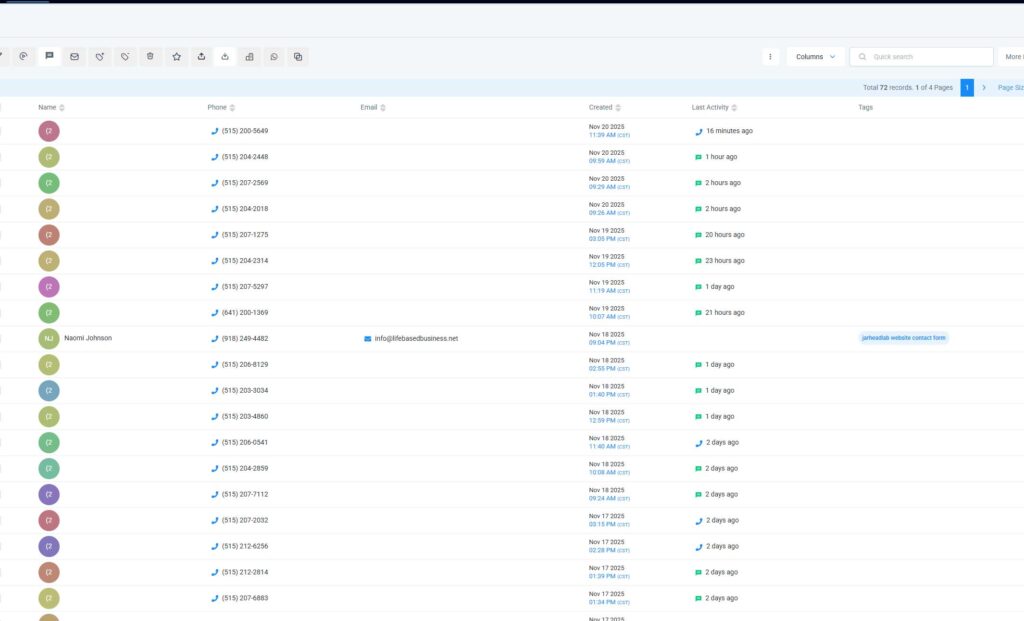
This problem made it hard to answer real customers. It also created a lot of stress because calls came in at all hours of the day. I needed something that would filter out bots without blocking real people. The solution was to put a short IVR in front of every call.
How a GoHighLevel IVR Stops Robocalls Automatically
A GoHighLevel IVR is an automated phone menu. It lets callers choose from options by pressing keys on their phone. This simple step is the key to stopping robocalls. Most bots cannot press any key at all. When a bot reaches your menu, it fails this input test and the call ends. That means your phone never rings for those calls.
What Makes IVR Effective
The power of IVR comes from a very simple test. A caller has to press a number. A human can do this in one second without thinking. A robocaller system does not send real touch tones. When the IVR waits for input and nothing happens, the system times out and ends the call or moves to a fail message. This one extra step is often enough to block the majority of spam.
Why GoHighLevel Is a Good Tool
GoHighLevel is simple to use and built for small business owners and marketing teams. You do not need advanced technical skills to build an IVR menu. The system uses visual blocks that you connect in a workflow. You can build a full call menu and even use AI voice from tools like ElevenLabs to record clear and professional audio prompts. GoHighLevel also routes calls to your cell phone or to different team members. That gives you control over who reaches your line and when.
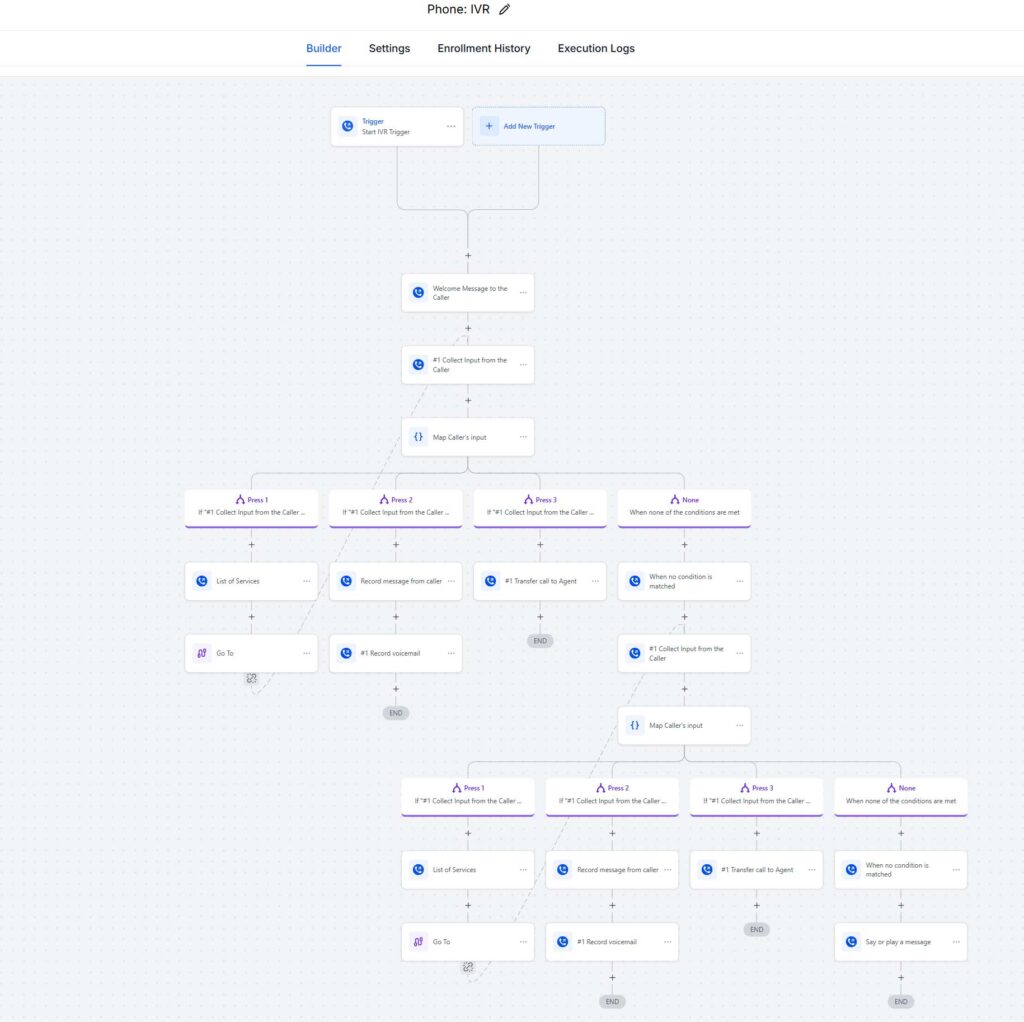
Here is an example of the IVR workflow we will build.
Step by Step: Build a GoHighLevel IVR to Stop Robocalls
The steps below walk you through the process in plain language. You can follow them even if you are new to GoHighLevel or phone systems.
Step 1: Open Workflows
Sign in to your GoHighLevel account and go to the Workflows area. Create a new workflow. Choose “Phone Call” as your trigger. This trigger tells the system to start the workflow every time your business number receives a call.
Step 2: Add a Welcome Message
Add a Say or Play block at the top of the workflow. This will be your greeting. Keep it short and clear. A simple message works best, such as:
“Thank you for calling. Please press 1 to continue.”
Short greetings help callers move to the menu quickly. Long intros make people hang up and can feel like a telemarketing recording.
Step 3: Add the Collect Input Action
Under your greeting, add a Collect Input action. Set it to detect only the number 1. This keeps your system simple and focused on one main filter. Set the timeout to around three seconds. That gives real callers time to press a key without slowing down the flow.
Step 4: Add Map Input
Next, add a Map Input step. This block tells GoHighLevel what to do with each choice. It routes callers into different branches based on which key they press. It also lets you define rules for what happens if no key is pressed at all.
Step 5: Build the Press 1 Branch
The Press 1 branch is your main path. Inside this branch, add a Say or Play message. This message can welcome callers, list your services, or confirm that they reached the right business. After that message, add a Go To action. Point that Go To action back to your Collect Input block. This creates a loop so callers can hear the menu again or choose a different option without needing to call back.
Step 6: Add a Voicemail Option
If you want callers to leave a message, create a Press 2 branch. Inside that branch, add a voicemail block. Use a clear and friendly script, such as:
“Please record your message after the tone. When you are finished, press the pound key.”
This gives customers a way to reach you even when no one is available to answer live.
Step 7: Add the Press 3 Option to Talk to Your Team
Some callers prefer to talk to a person right away. For that, use a Press 3 branch. Inside this branch, add a Transfer Call action. Enter your cell phone number or your team’s main line. Set the ring time to about twenty to thirty seconds so the call has a reasonable chance to be answered before it rolls to voicemail.
Step 8: Handle Invalid Input
People sometimes press the wrong key. To handle this, add a short message like:
“We did not recognize that entry. Please try again.”
After that message, send callers back to the Collect Input block. This gives them another chance to choose the correct option.
Step 9: Handle No Input
Some callers do not press any key at all. This happens often with bots that cannot respond. Add a message such as:
“We did not receive a selection.”
From there, you can either return them to the Collect Input block or end the call. Many businesses choose to end the call in this case, since most no-input events are robocalls.
Step 10: Test Your IVR System
Testing is a critical final step. Use a second phone line to call your business number. Do not test from the same number that receives forwarded calls. When you test from the forwarding number, the IVR may behave differently or skip parts of the menu. Use star 67 or a Google Voice number instead. Make sure every option works and that the workflow routes calls exactly as you expect.
You can also add more branches later, such as “Press 4 to hear our services” or options that route calls to specific employees. Start simple, then expand as your needs grow.
Show Real Proof: Why This Works
Many small business owners want proof that an IVR actually reduces spam. In my own case, the difference was clear. After the IVR went live, the system blocked most robocalls right away, and the call log changed overnight.
Before IVR
- About twenty robocalls per day.
- Many calls came from strange numbers with local area codes.
- Several calls claimed to be from Google about my listing.
- Some calls used recorded messages with scare tactics.
After IVR
- Spam calls dropped to almost zero.
- Only real people could reach the main line.
- My phone stopped ringing nonstop throughout the day.
- Customers reached me faster and had a better experience.
Many other owners see similar results. The IVR works because it forces a human action. Bots cannot pass that step, so they fail silently in the background instead of hitting your phone.
Extra Tips for Better Call Handling
Tip 1: Keep the Menu Simple
Too many options confuse callers and slow down calls. Aim for three options or fewer in your first version. You can always expand later if you need more branches.
Tip 2: Short Messages Work Better
Long recordings cause callers to hang up. Keep each message short and clear. Say only what the caller needs to know to move forward.
Tip 3: Send Calls to the Right Person
Make sure your Press 3 option points to the correct phone number. If you have a team, decide who should handle which type of call and route those paths correctly.
Tip 4: Add After Hours Routing
You can automatically send calls to voicemail after business hours. Time-based routing makes your phone system feel more professional and keeps late-night calls under control.
Tip 5: Review Call Logs Often
Use GoHighLevel to check your call logs on a regular basis. If you see a lot of no-input events, that is a good sign that the system is blocking bots. You can also watch for patterns and adjust your menu as needed.
Common Mistakes and How to Avoid Them
Greeting Too Long
Long greetings make callers wait and can sound like spam themselves. Keep your greeting short so callers can choose an option quickly and feel in control.
No Go To Step
If you forget to add a Go To step at the end of a branch, the call may end earlier than you want. Always decide where you want callers to go next and set the Go To action on each branch.
Testing Incorrectly
Testing from your forwarding number can give you false results. Use a separate phone line so you see how real callers experience the menu.
Too Many Options
Large menus with many choices slow down calls and confuse people. Start with a simple menu and only add more options when you have a clear reason to do so.
Bad Audio Quality
Poor recordings make your business sound less professional. Use clean audio. Jarhead Labs recommends using a high quality tool like ElevenLabs to create clear and consistent messages for your IVR.
External Resources for Small Business Owners
Small business owners should understand their rights when it comes to robocalls and phone scams. These resources offer clear guidance and are worth bookmarking.
FCC Robocall Guidance: The Federal Communications Commission explains what robocalls are and how the rules apply to them. This is a trusted government source that helps small businesses understand the law.
Source: https://www.fcc.gov
FTC Robocall Enforcement: The Federal Trade Commission works to fight phone scams. Their site shows how scammers operate and what actions the agency takes against them.
Source: https://www.ftc.gov
Google Business Profile Help: Google explains how to handle fake calls that pretend to be from Google about your business listing. These scams are very common for small businesses.
Source: https://support.google.com/business/answer/6212928?hl=en
Additional FAQs
Bots scrape public Google Business Profiles and create large automated call lists. They target every number they find, which makes verified businesses easy targets for scams.
The IVR blocks most robocalls because bots cannot press a number. Human scammers can still press keys, but the overall spam volume drops significantly once an IVR is in place.
Yes. You can write your own scripts and record your own audio. Using tools like ElevenLabs helps you create clear, professional, consistent-sounding voice prompts.
Not at first. Too many choices overwhelm callers. Start with a simple menu — such as Press 1 to continue — and expand only when you have a clear reason to separate call types.
You can send calls to voicemail, a backup number, or a different team member. GoHighLevel lets you control ring times and fallback routing to avoid missed calls.
Yes. You can build and assign the same IVR workflow to multiple business lines inside GoHighLevel — perfect for sales, support, and different locations.
Yes. You can add time-based rules so after-hours callers go straight to voicemail or follow a different menu branch. This creates a smooth experience any time of day.
You can open your workflow in GoHighLevel at any time to change scripts, audio, routing, or menu branches. Updates apply instantly after saving.
No. The standard GoHighLevel plans already include phone workflows and IVR functionality. You do not need an upgraded plan to use this feature.
Yes. Jarhead Labs can fully design, record, and test your IVR workflow. If you prefer not to build it yourself, you can schedule a call and our team will set everything up for you.
Conclusion
Robocalls distract small businesses and waste valuable time. They also create stress and make it harder to serve real customers. A simple GoHighLevel IVR menu can stop most of these calls before your phone even rings. The menu forces callers to press a number, which most bots cannot do. Real customers still get through, and your day becomes much quieter and more focused. When I built this menu, my spam calls dropped from twenty to thirty calls a day to almost zero. You can get the same relief with a straightforward setup.